- Lightroom Black And Orange Color Tone Presets Download...

- Lightroom se black and orange tone me photo edit kaise kare... Steps
1. Photo Import: Lightroom app ko open karein aur apne desired photo ko import karein.
2. Basic Adjustments:
Exposure: Adjust exposure for the right brightness.
Contrast: Increase contrast for a dynamic look.
Saturation: Reduce overall saturation to make colors more muted.
3. Tint and Temperature:
Adjust temperature towards warmer tones (more orange).
Fine-tune tint to balance the color.
4. Color Mix:
Go to the Color Mix or HSL tab.
Increase orange saturation and luminance.
Adjust other colors as needed.
5. Tone Curve:
Create a simple "S" curve to enhance contrast.
Adjust individual color channels for a desired look.
6. Split Toning:
Add warm tones to highlights and shadows.
Experiment with the balance for the desired effect.
7. Effects:
Add a slight vignette for emphasis.
Adjust grain if you want a film-like effect.
8. Details:
Sharpen the image appropriately.
Adjust noise reduction if needed.
9.Final Touches:
Review and tweak any adjustments as necessary.
Save or export your edited photo.
Remember to experiment with each step to achieve the desired black and orange aesthetic.
Lightroom mobile app mein photo ko edit karna kaafi aasan hai. Yahan mein kuch basic steps provide kar raha hoon jo aapko shuruwat mein madad karenge:
- App Install kare aur Open kare: Sabse pehle, Lightroom mobile app ko apne mobile device mein install kare aur usko open kare.
- Photo Import kare: Photo edit karne ke liye, Lightroom app mein photo ko import kare. Iske liye, "+" icon par tap kare aur phir "Add Photos" select kare, ya phir direct gallery se photo select kare.
- Edit Panel Open kare: Photo select karne ke baad, bottom panel mein Edit icon (jaise pencil ya sliders ka icon) par tap kare.
- Editing Tools ka Istemal kare: Ab aapke samne kai editing tools honge. Aap exposure, contrast, saturation, temperature, aur bhi bahut kuch adjust kar sakte hain.
- Presets ka Istemal kare (optional): Lightroom mein kai presets available hote hain, jo aapko photo mein instant effects dene mein madad karte hain. Aap presets ke menu mein ja kar unhe apply kar sakte hain.
- Crop aur Rotate kare: Agar aapko photo ko crop ya rotate karna hai, to crop tool ka istemal kare aur apne according photo ko adjust kare.
- Save kare aur Share kare: Jab aap satisfied ho jaayein apne editing se, to "Done" ya "Save" button par tap kare. Phir aap photo ko apne gallery mein save kar sakte hain ya direct social media platforms par share kar sakte hain or mere ko tage Mare ....Killer Editing
Yeh kuch basic steps hain Lightroom mobile app mein photo edit karne ke liye. Aap aur bhi advanced tools aur techniques explore kar sakte hain jaise ki selective editing, gradient filters, aur brushes ka istemal.
- Lightroom Presets Ko Kaise Use kare....

- Lightroom mobile presets ka istemal karna photo editing ko bahut hi aasan bana deta hai. Niche diye gaye steps follow karein:
- Lightroom Mobile App Open kare: Apne mobile device mein Lightroom mobile app ko open karein.
- Photo Import kare: Photo edit karne ke liye, Lightroom app mein photo ko import karein. Iske liye, "+" icon par tap karein aur phir "Add Photos" select karein, ya phir direct gallery se photo select karein.
- Edit Panel Open kare: Photo select karne ke baad, bottom panel mein Edit icon (jaise pencil ya sliders ka icon) par tap karein.
- Presets Panel Open kare: Edit panel mein, top-right corner mein ek three-dot menu hoga. Us par tap karein aur "Presets" option ko select karein.
- Presets ko Browse karein: Ab aapke samne presets ka collection hoga. Aap presets ko scroll karke browse kar sakte hain aur jis preset ko apply karna chahte hain, us par tap karein.
- Presets Apply karein: Jab aap preset par tap karte hain, to wo automatically aapke photo par apply ho jayega. Aap dekhenge ki aapka photo preset ke according change ho jayega.
- Adjustments karein (optional): Agar aapko preset ke baad bhi kuch adjustments karna hai, to aap editing tools ka istemal karke further adjustments kar sakte hain.
- Save karein aur Share karein: Jab aap satisfied ho jaayein apne editing se, to "Done" ya "Save" button par tap karein. Phir aap photo ko apne gallery mein save kar sakte hain ya direct social media platforms par share kar sakte hain.
Is tarah se aap presets ka istemal karke Lightroom mobile app mein aasani se photo edit kar sakte hain...Killer Editing👌
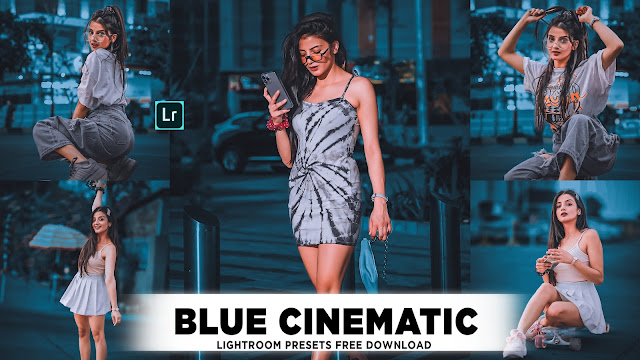
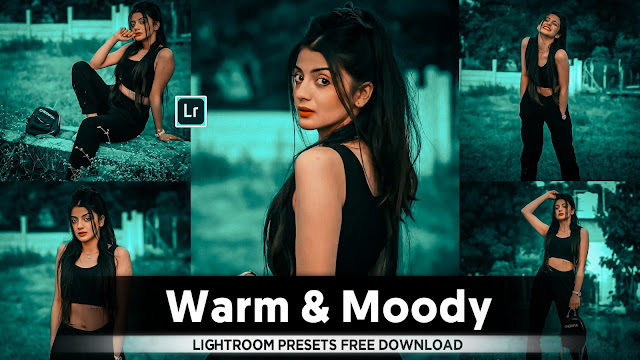 |
Comments
Post a Comment