- Lightroom Aqua And Orange Colour Tone Preset Download...

• Photo editing in the aqua and orange color tone using the Lightroom mobile app can enhance the overall look and feel of your images, giving them a vibrant and cinematic appearance. Here's a step-by-step guide on how to achieve this effect:-
1. Open the Lightroom Mobile App: Launch the Lightroom mobile app on your smartphone or tablet.
2.Import Your Photo: Tap the "+" icon at the bottom of the screen to import the photo you want to edit. Choose the photo from your device's gallery.
3. Access the Edit Panel: Once the photo is imported, tap on it to open it in the editing interface. You'll see various editing options at the bottom of the screen. Tap on the "Edit" icon (three sliders) to access the editing tools.
4. Adjust Exposure and Contrast: Start by adjusting the exposure and contrast to achieve the desired brightness and overall tonality of the image. Move the sliders for exposure and contrast until you're satisfied with the result.
5. Enhance Colors: To create the aqua and orange color tone, you'll need to manipulate the colors in your image. Tap on the "Color" icon (circle filled with color gradient) to access the color editing tools.
6. Adjust Temperature and Tint: Increase the temperature slightly towards the warmer side to enhance the orange tones in the image. Then, adjust the tint to fine-tune the color balance. Experiment with different settings until you achieve the desired warm look.
7. Modify HSL (Hue, Saturation, and Luminance): Tap on the "Mix" option within the Color menu to access the HSL sliders. Here, you can individually adjust the hue, saturation, and luminance of different colors in the image.
*Hue: Shift the aqua tones towards blue to enhance the aqua color in the image.
*Saturation: Increase the saturation of both aqua and orange tones to make them more vibrant.
*Luminance: Adjust the luminance of aqua and orange tones to control their brightness in the image.
8. Apply Split Toning: Split toning allows you to add specific colors to the highlights and shadows of your image. Tap on the "Split Tone" option to access the split toning controls.
*Highlight Hue: Select a shade of orange for the highlight tones.
*Shadow Hue: Choose a shade of aqua or blue for the shadow tones.
*Balance: Adjust the balance slider to control the balance between highlight and shadow tones.
9. Refine Details: Use the "Detail" panel to sharpen the image and reduce noise if necessary. Adjust the sharpening and noise reduction sliders to enhance the overall clarity of the photo.
10. Add Effects (Optional): Experiment with adding effects like vignette or grain to further enhance the mood of your image. Tap on the "Effects" icon and adjust the sliders for vignette and grain according to your preference.
11. Save Your Edit: Once you're satisfied with the adjustments, tap on the checkmark icon to save your edits.
12. Export Your Photo: Tap on the share icon and choose the export options to save your edited photo to your device's gallery or share it directly on social media.
( By following these steps, you can effectively edit your photo in the aqua and orange color tone using the Lightroom mobile app, giving it a professional and cinematic appearance. Experiment with different settings and adjustments to achieve the perfect look for your image.)
1. Preset ko Copy karna:
Lightroom mein, Presets panel mein, jo preset aap copy karna chahte hain, jaisi ki yah Aqua And Orange preset usko select karein.
Phir, Develop module mein jaayein.
Develop settings pane ke upar, "Copy" button par click karein.
Ek dialog box khulega jisme aapko select karna hoga ki aap kaun se settings ko copy karna chahte hain. Sabhi settings ko copy karne ke liye sab options ko select kar matlab right Karen. sakte hain ya specific settings bhi choose kar sakte hain.
"Copy" par click karein.
2. Preset ko Paste karna:
Ab, aapko paste karna hai. Doosri photo ko select karein jise aap aqua orange tone Lana chahte Hain vah photo select Karen. Fir aqua & orange preset apply karna chahte hain.
Develop module mein jaayein.
Develop settings pane ke upar, "Paste" button par click karein.
Phir se ek dialog box khulega jisme aapko choose karna hoga ki aap kaun se settings ko paste karna chahte hain. Agar aapne sabhi settings ko copy kiya hai to sabhi settings ko paste karne ke liye sab options ko select karein ya fir specific settings ko choose karein.
"Paste" par click karein.
Is tarah se aap kisi bhi photo par preset ko copy aur paste kar sakte hain Lightroom aqua and orange preset ko bi or killer editing ke ir presets ko bi. Aur premium setting ke liye premium preset lagta hai. Agar aapka lightroom female varjan ka nahin Raha to aapka setting bhi remember jinki nahin aaengi copy karne ki.
- Lightroom Presets Ko Kaise Use kare....

- Lightroom mobile presets ka istemal karna photo editing ko bahut hi aasan bana deta hai. Niche diye gaye steps follow karein:
- Lightroom Mobile App Open kare: Apne mobile device mein Lightroom mobile app ko open karein.
- Photo Import kare: Photo edit karne ke liye, Lightroom app mein photo ko import karein. Iske liye, "+" icon par tap karein aur phir "Add Photos" select karein, ya phir direct gallery se photo select karein.
- Edit Panel Open kare: Photo select karne ke baad, bottom panel mein Edit icon (jaise pencil ya sliders ka icon) par tap karein.
- Presets Panel Open kare: Edit panel mein, top-right corner mein ek three-dot menu hoga. Us par tap karein aur "Presets" option ko select karein.
- Presets ko Browse karein: Ab aapke samne presets ka collection hoga. Aap presets ko scroll karke browse kar sakte hain aur jis preset ko apply karna chahte hain, us par tap karein.
- Presets Apply karein: Jab aap preset par tap karte hain, to wo automatically aapke photo par apply ho jayega. Aap dekhenge ki aapka photo preset ke according change ho jayega.
- Adjustments karein (optional): Agar aapko preset ke baad bhi kuch adjustments karna hai, to aap editing tools ka istemal karke further adjustments kar sakte hain.
- Save karein aur Share karein: Jab aap satisfied ho jaayein apne editing se, to "Done" ya "Save" button par tap karein. Phir aap photo ko apne gallery mein save kar sakte hain ya direct social media platforms par share kar sakte hain.
Is tarah se aap presets ka istemal karke Lightroom mobile app mein aasani se photo edit kar sakte hain...Killer Editing

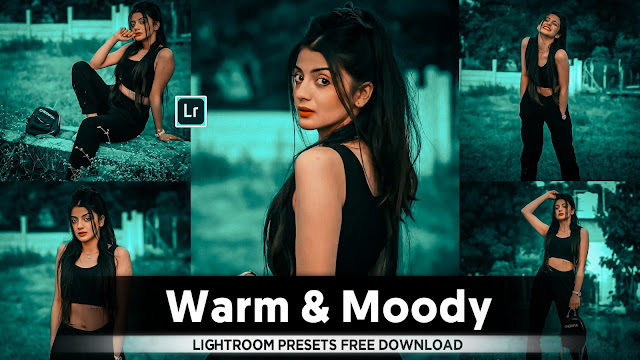


- Lightroom next level colourful preset download Videos...💖
Comments
Post a Comment