Lightroom Mobile Top 5 DNG Presets Download...

- Lightroom Presets Ko Kaise Use kare....
- Lightroom mobile presets ka istemal karna photo editing ko bahut hi aasan bana deta hai. Niche diye gaye steps follow karein:
- Lightroom Mobile App Open kare: Apne mobile device mein Lightroom mobile app ko open karein.
- Photo Import kare: Photo edit karne ke liye, Lightroom app mein photo ko import karein. Iske liye, "+" icon par tap karein aur phir "Add Photos" select karein, ya phir direct gallery se photo select karein.
- Edit Panel Open kare: Photo select karne ke baad, bottom panel mein Edit icon (jaise pencil ya sliders ka icon) par tap karein.
- Presets Panel Open kare: Edit panel mein, top-right corner mein ek three-dot menu hoga. Us par tap karein aur "Presets" option ko select karein.
- Presets ko Browse karein: Ab aapke samne presets ka collection hoga. Aap presets ko scroll karke browse kar sakte hain aur jis preset ko apply karna chahte hain, us par tap karein.
- Presets Apply karein: Jab aap preset par tap karte hain, to wo automatically aapke photo par apply ho jayega. Aap dekhenge ki aapka photo preset ke according change ho jayega.
- Adjustments karein (optional): Agar aapko preset ke baad bhi kuch adjustments karna hai, to aap editing tools ka istemal karke further adjustments kar sakte hain.
- Save karein aur Share karein: Jab aap satisfied ho jaayein apne editing se, to "Done" ya "Save" button par tap karein. Phir aap photo ko apne gallery mein save kar sakte hain ya direct social media platforms par share kar sakte hain.
Is tarah se aap presets ka istemal karke Lightroom mobile app mein aasani se photo edit kar sakte hain...Killer Editing👌
1. Lightroom Presets...(First.1)👇
.dng)
👉 PRESET DOWNLOAD 👈
2. Lightroom Presets...(2)👇

👉 PRESET DOWNLOAD 👈
3. Lightroom Presets...(3)👇

4. Lightroom Presets...(4)👇


• Lightroom Mobile ek powerful photo editing app hai jo photographers ko apne mobile devices par professional-level editing capabilities provide karta hai. Is app ko starting se lekar advanced editing tak samajhne ke liye, niche diye gaye kuch basic steps hain:-
1. Download and Installation:
- Sabse pehle, apne mobile device ke respective app store se Adobe Lightroom Mobile ko download karein.
- Installation complete hone ke baad, app ko open karein.
2. Account Creation or Sign-In:
- Agar aapne pehle se Adobe account banaya hai, toh usme sign-in karein.
- Agar nahi, toh ek naya account banayein.
3. Understanding the Interface:
- Lightroom Mobile ka interface user-friendly hota hai. Isme aapko various editing tools aur options milenge.
- Basic interface elements include Library, Edit, and Share tabs.
4. Importing Photos:
- Photos ko Lightroom Mobile mein import karne ke liye, Library tab mein jayein.
- Import button par tap karke apne device se photos select karein aur import karein.
5. Basic Editing:
- Apne imported photo ko select karein aur Edit tab mein jayein.
- Basic editing tools jaise ki Exposure, Contrast, Saturation, etc., se apne photo ko adjust karein.
6. Advanced Editing:
- Advanced editing ke liye, Selective tools aur Brushes ka istemal karein.
- In tools se specific areas ko adjust karein, jaise ki brightness, color, clarity, etc.
7. Presets and Profiles:
- Lightroom Mobile mein presets aur profiles ka istemal karke apne photos ko ek consistent look de sakte hain.
- Inka istemal karke aap apne photos ko ek specific style mein edit kar sakte hain.
8. Exporting Photos:
- Editing complete hone ke baad, apne photo ko save ya share karne ke liye Share tab mein jayein.
- Export options mein se apne preference ke hisab se ek option chunein aur photo ko export karein.
Yeh kuch basic steps hain Lightroom Mobile ko start karne aur photo edit karne ke liye. Isme aur bhi advanced features hain jo aap samajhne ke liye practice aur experimentation kar sakte hain.
• Lightroom Mobile mein preset copy paste karne ke liye, yeh step-by-step guide hoga:
1. Lightroom Mobile App Install Kare: Sabse pehle, apne device mein Lightroom Mobile app ko install karein aur open karein.
2. Preset Import Karein: Preset import karne ke liye, Lightroom app ko open karein aur Library tab par jayein.
3. Add Photos Icon Par Click Karein: Library tab mein, add photos icon (plus sign) par click karein aur photo select karein jisme aap preset apply karna chahte hain.
4. Edit Mode Par Jayein: Ab photo ko select karne ke baad, bottom panel mein Edit icon par click karein.
5. Presets Tab Open Karein: Edit mode mein, upar right corner mein Presets icon par click karein. Yeh preset gallery ko open karega.
6. Preset Select Karein: Preset gallery mein se aapka desired preset select karein.
7. Preset Apply Karein: Select kiye hue preset par click karein. Preset apply ho jayega.
8. Settings Icon Par Click Karein: Ab, preset apply hone ke baad, top right corner mein Settings icon par click karein.
9. Copy Settings Option Select Karein: Settings menu mein se Copy Settings option ko select karein.
10. Settings Copy Karein: Copy Settings page par, jo bhi settings aapko copy karni hain (like Light, Color, Effects etc.), unhe select karein.
11. Copy Par Click Karein: Select kiye hue settings par click karke, Copy par click karein. Settings copy ho jayenge.
12. Doosri Photo Select Karein: Ab, wapas Library tab par jayein aur doosri photo select karein jisme aap yeh settings apply karna chahte hain.
13. Edit Mode Mein Jayein: Photo select karne ke baad, bottom panel mein Edit icon par click karein.
14. Settings Paste Karein: Edit mode mein, upar right corner mein Settings icon par click karein. Settings menu mein se Paste Settings option ko select karein.
15. Paste Par Click Karein: Select kiye hue settings ko paste karne ke liye, Paste par click karein. Settings paste ho jayenge.
Yeh steps follow karke aap Lightroom Mobile mein presets copy paste kar sakte hain.
* Introduction to Advanced Editing in Lightroom Mobile
- Brief overview of Lightroom Mobile
- Importance of advanced editing techniques
- Purpose of the guide
* Getting Started
1. Understanding the Lightroom Mobile Interface
- Overview of the various sections and tools available
2. Importing and Organizing Photos
- How to import photos into Lightroom Mobile
- Organizing photos using albums and collections
* Advanced Editing Techniques
1. Basic Adjustments
- Exposure, contrast, highlights, shadows, whites, blacks
- Temperature, tint, vibrance, saturation
2. Selective Adjustments
- Using the brush tool for selective adjustments
- Graduated filter for selective edits
- Radial filter for targeted adjustments
3. Advanced Color Adjustments
- Using the color mixer for precise color adjustments
- Split toning for creative color grading
- HSL (Hue, Saturation, Luminance) panel for fine-tuning colors
4. Detail Enhancements
- Sharpening for enhancing image details
- Noise reduction for improving image quality
- Lens corrections for correcting distortions and aberrations
5. Creative Effects
- Adding vignettes for artistic emphasis
- Using the grain effect for a film-like appearance
- Applying creative presets for instant effects
6. Advanced Retouching
- Spot healing for removing blemishes and distractions
- Clone stamp for more precise retouching
- Healing brush for larger areas of retouching
* Workflow Tips and Tricks
1. Non-Destructive Editing
- Importance of non-destructive editing
- Utilizing virtual copies for experimentation
2. Presets and Profiles
- Creating custom presets for efficiency
- Importing and using preset packs
- Utilizing camera profiles for consistent color rendering
3. Batch Editing
- Editing multiple photos simultaneously
- Syncing edits across multiple images
* Exporting and Sharing
1. Export Settings
- Choosing the right file format and resolution
- Adjusting output settings for different platforms
2. Sharing Options
- Sharing directly to social media platforms
- Exporting to device or cloud storage
*.Conclusion
- Recap of advanced editing techniques covered
- Encouragement to practice and experiment with techniques
- Final thoughts on the power of Lightroom Mobile for advanced editing
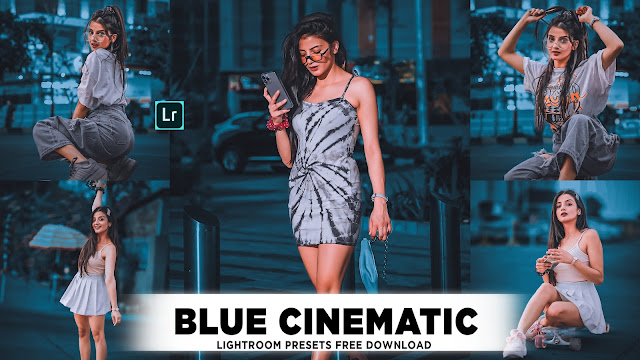
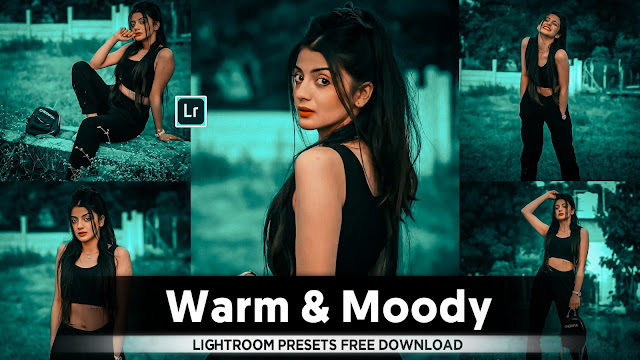


- Lightroom next level colourful preset download Videos...💖
Comments
Post a Comment