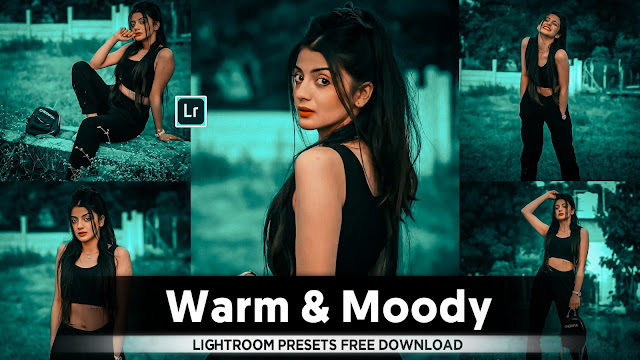
- Lightroom Mobile Outdoor Pretty Look Colour Tone Presets

Hare are the basic steps for editing a photo in Lightroom:-
1. Import your photo into Lightroom.
2. Adjust the basic settings like exposure, contrast, highlights, shadows, whites, and blacks using the sliders in the Basic panel.
3. Fine-tune the colors by adjusting temperature, tint, vibrance, and saturation.
4. Correct any lens distortions or chromatic aberration in the Lens Corrections panel.
5. Crop and straighten the image if needed.
6. Sharpen the image and reduce noise in the Detail panel.
7. Add creative effects like vignetting, grain, or split toning if desired.
8. Experiment with presets or create your own to apply consistent edits across multiple photos.
9. Finally, export your edited photo in the desired file format and resolution.
• Lightroom se outdoor photo ko sundar dikhne wala look kaise edit karein, yeh kaafi detailed hai. Lightroom se outdoor pretty look edit kaise kare steps:-
Kadam 1: Photo Import Karein
Photo ko Lightroom Mobile mein import karein. Iske liye, Lightroom Mobile ko open karein aur photo library se desired photo ko select karein.
Kadam 2: Exposure aur Contrast Adjust Karein
Exposure aur contrast ko adjust karke photo ko brighten karein aur depth add karein. Exposure ko badhane ke liye 'Exposure' slider ko right ki taraf move karein, aur contrast ko adjust karne ke liye 'Contrast' slider ka istemal karein.
Kadam 3: White Balance aur Temperature
White balance aur temperature ko adjust karein, jisse photo ka color balance sahi ho. Agar photo mein zyada blue tones hain, to 'Temperature' slider ko thoda right ki taraf move karein.
Kadam 4: Highlights, Shadows, Whites, aur Blacks
Highlights, shadows, whites, aur blacks ko adjust karein taki dynamic range ko balance kiya ja sake. Isse photo mein details aur depth aayegi.
Kadam 5: Vibrance aur Saturation
Vibrance aur saturation ko adjust karein taki colors vibrant aur rich lagein. 'Vibrance' slider ko thoda sa increase karein aur 'Saturation' slider ko carefully use karein taki colors natural dikhein.
Kadam 6: Clarity aur Dehaze
Clarity aur dehaze ko use karke photo ko aur detail aur clarity add karein, especially agar photo mein haze hai. Isse photo ka overall look improve hoga.
Kadam 7: Crop aur Straighten
Crop aur straighten tool ka istemal karke composition ko improve karein. Unwanted elements ko hatakar photo ko clean karein.
Kadam 8: Selective Editing
Selective editing ka istemal karke specific areas ko enhance karein. Brush tool, radial filter, ya gradient tool ka istemal karke particular areas ko highlight ya adjust karein.
Kadam 9: Presets aur Final Touches
Presets ka istemal karke aur final touches jaise sharpening, noise reduction, aur vignette add karein. Presets se starting point choose karein aur phir usko customize karein apne preferences ke according.
Kadam 10: Export aur Share
Photo ko export karein high resolution mein aur share karein apne desired platform par.
Yeh hai outdoor photo ko edit karne ke kuch basic steps Lightroom Mobile mein. Har kadam ko dhyan se follow karein aur apne creativity ka use karein photo ko aur behtar banane ke liye.
- Lightroom Presets Ko Kaise Use kare....

Lightroom mobile presets ka istemal karna photo editing ko bahut hi aasan bana deta hai. Niche diye gaye steps follow karein:
- Lightroom Mobile App Open kare: Apne mobile device mein Lightroom mobile app ko open karein.
- Photo Import kare: Photo edit karne ke liye, Lightroom app mein photo ko import karein. Iske liye, "+" icon par tap karein aur phir "Add Photos" select karein, ya phir direct gallery se photo select karein.
- Edit Panel Open kare: Photo select karne ke baad, bottom panel mein Edit icon (jaise pencil ya sliders ka icon) par tap karein.
- Presets Panel Open kare: Edit panel mein, top-right corner mein ek three-dot menu hoga. Us par tap karein aur "Presets" option ko select karein.
- Presets ko Browse karein: Ab aapke samne presets ka collection hoga. Aap presets ko scroll karke browse kar sakte hain aur jis preset ko apply karna chahte hain, us par tap karein.
- Presets Apply karein: Jab aap preset par tap karte hain, to wo automatically aapke photo par apply ho jayega. Aap dekhenge ki aapka photo preset ke according change ho jayega.
- Adjustments karein (optional): Agar aapko preset ke baad bhi kuch adjustments karna hai, to aap editing tools ka istemal karke further adjustments kar sakte hain.
- Save karein aur Share karein: Jab aap satisfied ho jaayein apne editing se, to "Done" ya "Save" button par tap karein. Phir aap photo ko apne gallery mein save kar sakte hain ya direct social media platforms par share kar sakte hain.
Is tarah se aap presets ka istemal karke Lightroom mobile app mein aasani se photo edit kar sakte hain...Killer Editing



Comments
Post a Comment