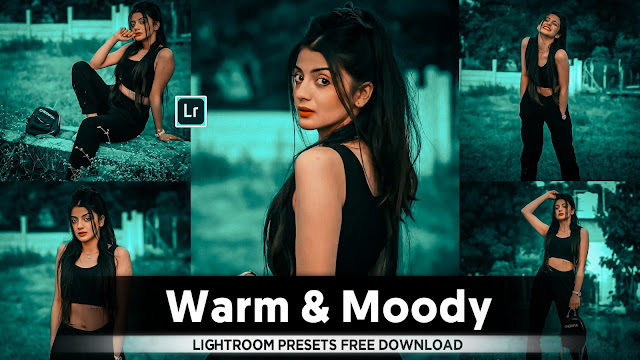
- Lightroom Aqua Blue Colour Tone Preset

• Lightroom mein aqua blue color tone mein photo edit karne ke liye, aapko detailed steps follow karne honge. Yahaan par main aapko ek comprehensive guide provide kar raha hoon jo aapko is process mein madad karega.
* 1. Lightroom Install Aur Launch Karein
1.1. Adobe Lightroom ko apne computer ya mobile device par install karein.
1.2. Lightroom ko open karein aur apni photo import karen.
* 2. Photo Import Karna
2.1. `Library` module mein jaake `Import` button par click karein.
2.2. Apne photo ki location select karein aur `Import` button par click karein.
* 3. Basic Adjustments
3.1. `Develop` module mein chalein, jahan aap photo ki initial adjustments karenge.
3.2. Exposure, Contrast, Highlights, Shadows, Whites, aur Blacks ko adjust karein taaki photo ka base tonality theek ho jaye.
* 4. Color Tones Ko Adjust Karna
4.1. `Basic` panel mein `White Balance` settings adjust karein. `Temp` aur `Tint` sliders ko use karke photo ko thoda cool tone dene ki koshish karein.
4.2.`HSL/Color` panel par jaayein aur `Hue`, `Saturation`, aur `Luminance` sliders ko adjust karein.
- Hue: Cyan aur Blue hues ko thoda adjust karein.
- Saturation: Blue aur Aqua saturation ko badhaayein.
- Luminance: Blue aur Aqua luminance ko adjust karein.
4.3. `Split Toning` panel mein chalein.
- Highlights: Highlight color ko Aqua ya Blue set karein. Hue ko 180-200 ke aas-paas set karein aur Saturation ko increase karein.
- Shadows: Shadows color ko bhi Aqua ya Blue set karein. Hue ko 180-200 ke aas-paas set karein aur Saturation ko adjust karein.
* 5. Color Grading
5.1. `Color Grading` panel par jaayein.
- Midtones: Aqua blue tone ko midtones mein apply karein. Hue ko 180-200 ke aas-paas set karein aur Saturation ko increase karein.
- Shadows aur Highlights: Shadows aur Highlights ko bhi Aqua blue color tone mein adjust karein.
* 6. Creative Adjustments
6.1. `Tone Curve` panel mein jaayein aur `RGB Curve` ko adjust karein.
- `Blue Curve` ko modify karke blue tones ko enhance karein.
6.2. `Color Calibration` panel mein jaayein.
- Blue Primary: Blue primary hue aur saturation ko adjust karein taaki photo mein aqua blue color tone prominent ho.
* 7. Detail Aur Sharpening
7.1. `Detail` panel mein jaayein.
- Sharpening: Sharpening settings ko adjust karein.
- Noise Reduction: Noise reduction settings ko adjust karein taaki photo smooth aur clean lage.
* 8. Final Touches
8.1. `Effects` panel mein jaayein.
- Dehaze: Dehaze slider ko thoda adjust karein taaki colors aur bhi vibrant lagne lagein.
- Vignette: Vignette effect ko apply karein agar photo ko thoda focused look chahiye.
8.2. `Graduated Filter` aur `Radial Filter` tools ka use karein specific areas mein color toning apply karne ke liye.
*9. Export Settings
9.1. Photo ke final adjustments karne ke baad, `File` menu se `Export` option select karein.
9.2. Export settings ko customize karein (file type, resolution, quality, etc.) aur `Export` button par click karein.
• Conclusion
Lightroom mein aqua blue color tone mein photo edit karne ke liye, aapko basic adjustments se lekar advanced color grading aur detail enhancements tak ka dhyaan rakhna padta hai. Yeh process practice aur experimentation se aur bhi refined aur personalized ho sakta hai. Har photo unique hoti hai aur isliye aapko apne editing skills ko samajhna aur use adapt karna padta hai.
Is guide ko follow karke aap apne photos ko effectively aqua blue tone mein edit kar sakte hain.
- Lightroom Presets Ko Kaise Use kare....

Lightroom mobile presets ka istemal karna photo editing ko bahut hi aasan bana deta hai. Niche diye gaye steps follow karein:
- Lightroom Mobile App Open kare: Apne mobile device mein Lightroom mobile app ko open karein.
- Photo Import kare: Photo edit karne ke liye, Lightroom app mein photo ko import karein. Iske liye, "+" icon par tap karein aur phir "Add Photos" select karein, ya phir direct gallery se photo select karein.
- Edit Panel Open kare: Photo select karne ke baad, bottom panel mein Edit icon (jaise pencil ya sliders ka icon) par tap karein.
- Presets Panel Open kare: Edit panel mein, top-right corner mein ek three-dot menu hoga. Us par tap karein aur "Presets" option ko select karein.
- Presets ko Browse karein: Ab aapke samne presets ka collection hoga. Aap presets ko scroll karke browse kar sakte hain aur jis preset ko apply karna chahte hain, us par tap karein.
- Presets Apply karein: Jab aap preset par tap karte hain, to wo automatically aapke photo par apply ho jayega. Aap dekhenge ki aapka photo preset ke according change ho jayega.
- Adjustments karein (optional): Agar aapko preset ke baad bhi kuch adjustments karna hai, to aap editing tools ka istemal karke further adjustments kar sakte hain.
- Save karein aur Share karein: Jab aap satisfied ho jaayein apne editing se, to "Done" ya "Save" button par tap karein. Phir aap photo ko apne gallery mein save kar sakte hain ya direct social media platforms par share kar sakte hain.
Is tarah se aap presets ka istemal karke Lightroom mobile app mein aasani se photo edit kar sakte hain...Killer Editing



Comments
Post a Comment