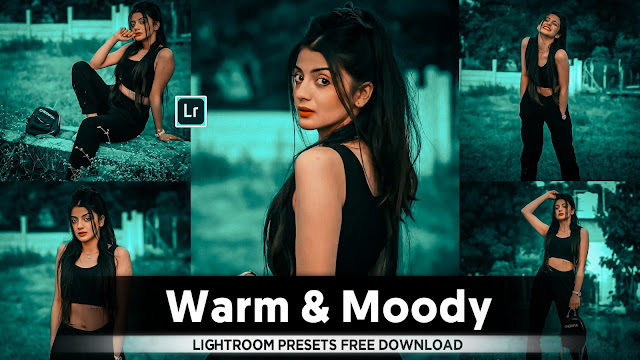
- Lightroom Dark Blue SkyColour Tone Presets

• Lightroom mein dark sky blue color tone effect ko achieve karne ke liye aapko kuch specific steps follow karne honge. Yeh steps aapko guidance denge ki kis tarah se aap apne landscape aur sky images ko vibrant aur moody dark blue tone mein edit kar sakte hain. Main yaha par step-by-step tarika share kar raha hoon jo aapke liye kaafi helpful hoga.
* Step-by-Step Guide for Dark Sky Blue Tone in Lightroom
1. Photo Selection
- Lightroom mein open hone ke baad sabse pehle aapko ek aisi photo select karni hogi jisme sky aur landscape prominent ho. Koshish karein ki image mein white balance aur brightness thik ho taki editing ka effect natural lage.
2. Basic Adjustments
- Basic adjustments mein aap exposure, contrast, highlights, shadows, whites, aur blacks adjust karenge. Yeh photo ko ek balanced base dene mein madad karenge.
- Exposure: Exposure ko adjust karke ensure karein ki image mein overexposure na ho. Zyada bright image se color tones achieve karna mushkil hota hai.
- Contrast: Contrast thoda enhance karein taki colors thode distinct aur bold lagein.
- Highlights: Highlights ko reduce karein taki sky aur clouds ke details retain ho sakein.
- Shadows: Shadows ko adjust karke overall image mein depth aur richness laayein.
- Whites and Blacks: Whites aur blacks ko is tarah se adjust karein ki image natural lage aur tones prominent ho sakein.
3. White Balance Adjustments
- White Balance aapke overall color tone ko define karta hai. Aap "Temp" (Temperature) slider ko thoda cool side (left) mein adjust kar sakte hain taki blue tones aur enhance ho sakein.
4. Tone Curve Adjustments
- Tone Curve mein adjustments karke aap apni image ko desired mood aur tone de sakte hain.
- Highlights and Lights: Highlights aur lights ko kam karein taki dark blue effect achieve kiya ja sake.
- Darks and Shadows: Shadows ko lift karein aur darks ko thoda aur deep banayein. Isse image mein dark aur moody blue effect aayega.
5. Color Adjustments (HSL/Color Panel)
- HSL (Hue, Saturation, Luminance) panel mein blue aur cyan tones ko adjust karke sky ka color manipulate kiya ja sakta hai.
- Hue: Blue aur cyan tones mein hue ko thoda adjust karein taki sky mein desired blue shade aaye.
- Saturation: Saturation slider ko adjust karke blue aur cyan tones ko intensify karein.
- Luminance: Luminance ko kam karke aap dark blue tone create kar sakte hain. Isse blue tones aur deep lagengi.
6. Split Toning
- Split Toning technique se aap highlights aur shadows mein different colors add kar sakte hain. Dark blue effect ke liye shadows mein thoda blue tone add karein aur highlights mein halki si warmth (orange/yellow) add karein taki image mein balance rahe.
7. Detail Enhancements (Sharpening and Noise Reduction)
- Sharpening aur Noise Reduction se aap image ki clarity aur details enhance kar sakte hain.
- Sharpening: Aap image ke details ko sharpen karein taki image ke edges aur elements clear aur crisp lagen.
- Noise Reduction: Agar sky mein noise zyada ho to luminance noise reduction slider ko adjust karein taki image smooth aur clear lage.
8. Effects (Vignette)
- Vignette effect ko use karke aap image ke corners mein darkness add kar sakte hain jo focus ko center par rakhne mein madad karta hai aur dark blue tone ko aur emphasize karta hai.
9. Graduated Filter/Linear Gradient
- Agar sky mein aur depth add karna ho to aap Graduated Filter ya Linear Gradient tool ka use kar sakte hain. Is tool se aap sky ke upar ek gradient apply karke uska color aur exposure adjust kar sakte hain.
- Exposure: Is filter mein exposure thoda kam karein taki sky aur dark lage.
- Temperature: Temperature ko thoda blue side mein adjust karein taki gradient mein blue tone prominent ho.
10. Adjustment Brush for Final Touches
- Adjustment Brush tool ke madhyam se aap sky ke specific areas ko aur refine kar sakte hain. Is brush mein saturation aur luminance adjust karke specific areas ko highlight aur dark kar sakte hain.
Yeh steps follow karke aap Lightroom mein dark sky blue effect ko asaani se achieve kar sakte hain.
° Second Steps- Lightroom Mobile se sky blue effect ka photo edit karne ke liye aap ye steps follow kar sakte hain:-
Step 1: Photo Import Karein
1. Lightroom Mobile app open karein aur "+" button par click karke apni photo ko import karein.
Step 2: Light Settings Adjust Karein
1. "Light" section mein jaayein aur exposure, contrast, highlights, shadows ko adjust karein:
- Exposure: Agar photo dark hai to exposure badha sakte hain.
- Contrast: Thoda contrast badhayein taaki sky aur sharp lage.
- Highlights: Thoda reduce karein taaki sky detail maintain rahe.
- Shadows: Shadows ko bhi adjust karein taaki photo mein deep tones aaye.
Step 3: Color Settings Adjust Karein
1. "Color" section mein jaayein aur sky blue effect ke liye blue tone aur temperature adjust karein:
- Temperature: Thoda cool side mein adjust karein (negative mein le jayein) taaki photo mein blue tones enhance ho.
- Tint: Tint mein thoda green ya blue shade laane ke liye adjust karein.
- Saturation: Sky mein blue color highlight karne ke liye saturation badhayein.
Step 4: Mix Tool Use Karein
1. Color section mein "Mix" tool par click karein (color wheel icon).
2. Yahan se individual colors ko adjust karein:
- Blue: Blue color ko select karein aur uske hue, saturation aur luminance adjust karein:
- Hue: Thoda blue tone shift karein agar required hai.
- Saturation: Blue saturation badhayein taaki sky aur vibrant dikhe.
- Luminance: Luminance ko adjust karein taaki sky mein deep ya bright tones aayein.
Step 5: Effects Add Karein
1. "Effects" section mein jaayein aur clarity aur dehaze adjust karein:
- Clarity: Clarity ko thoda badhayein taaki sky aur sharp lage.
- Dehaze: Dehaze se cloud ya haze ko remove kar sakte hain jo sky ko aur clean aur vibrant banata hai.
Step 6: Final Adjustments Karein
1. "Detail" section mein jaayein aur sharpness aur noise reduction adjust karein agar required ho.
Step 7: Export Karein
1. Jab photo aapko pasand aaye to "Export" option par click karke save ya share karein.
In steps ko follow karke aap Lightroom Mobile par apni photo mein sky blue effect la sakte hain!
- Lightroom Presets Ko Kaise Use kare....

Lightroom mobile presets ka istemal karna photo editing ko bahut hi aasan bana deta hai. Niche diye gaye steps follow karein:
- Lightroom Mobile App Open kare: Apne mobile device mein Lightroom mobile app ko open karein.
- Photo Import kare: Photo edit karne ke liye, Lightroom app mein photo ko import karein. Iske liye, "+" icon par tap karein aur phir "Add Photos" select karein, ya phir direct gallery se photo select karein.
- Edit Panel Open kare: Photo select karne ke baad, bottom panel mein Edit icon (jaise pencil ya sliders ka icon) par tap karein.
- Presets Panel Open kare: Edit panel mein, top-right corner mein ek three-dot menu hoga. Us par tap karein aur "Presets" option ko select karein.
- Presets ko Browse karein: Ab aapke samne presets ka collection hoga. Aap presets ko scroll karke browse kar sakte hain aur jis preset ko apply karna chahte hain, us par tap karein.
- Presets Apply karein: Jab aap preset par tap karte hain, to wo automatically aapke photo par apply ho jayega. Aap dekhenge ki aapka photo preset ke according change ho jayega.
- Adjustments karein (optional): Agar aapko preset ke baad bhi kuch adjustments karna hai, to aap editing tools ka istemal karke further adjustments kar sakte hain.
- Save karein aur Share karein: Jab aap satisfied ho jaayein apne editing se, to "Done" ya "Save" button par tap karein. Phir aap photo ko apne gallery mein save kar sakte hain ya direct social media platforms par share kar sakte hain.
Is tarah se aap presets ka istemal karke Lightroom mobile app mein aasani se photo edit kar sakte hain...Killer Editing



Comments
Post a Comment