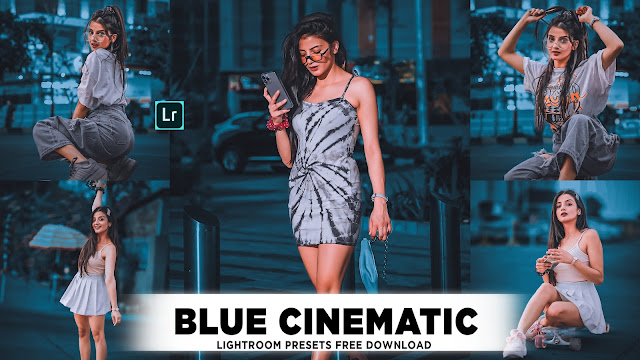
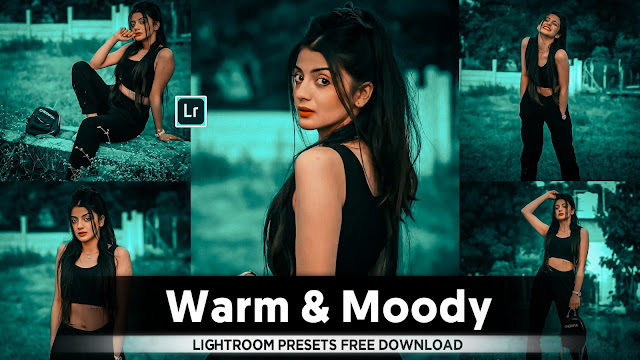
- Lightroom Teal And Yellow Colour Tone Presets

• Lightroom mein teal aur yellow color tone ka effect dalne ke liye niche diye gaye steps ko follow karein. Ye process aapko step-by-step guide karega aur ek cinematic aur aesthetic look ke liye aapki photo ko transform karega.
---
1. Lightroom Open Karein
- Adobe Lightroom Classic ya Lightroom Mobile app ka use karein.
- Apni photo import karein jo aap edit karna chahte hain.
---
2. Basic Adjustments Karein
Sabse pehle aapko photo ka overall exposure aur contrast adjust karna hoga:
° Exposure
- Agar photo dark hai, to exposure ko thoda increase karein (approx. +0.5 to +1.5).
- Overexposed photo ke liye exposure ko reduce karein.
° Contrast
- Contrast ko thoda increase karein (approx. +10 to +20) taki colors vibrant lagen.
° Highlights
- Highlights ko reduce karein (approx. -30 to -50) taki bright areas overexposed na lagen.
° Shadows
- Shadows ko increase karein (approx. +20 to +40) taki dark areas me details aayein.
° Whites aur Blacks
- Whites: Slightly increase karein (approx. +10 to +20).
- Blacks: Thoda decrease karein (approx. -10 to -20).
---
3. White Balance Adjust Karein
- Teal aur yellow tones ke liye warm tone aur cool tone ka balance zaroori hai.
- Temperature ko thoda kam karein (approx. -10 to -15) taki photo me cool effect aaye.
- Tint ko slight increase karein (approx. +5 to +10) taki teal aur yellow tones harmonize ho sakein.
---
4. Tone Curve Adjustments
Tone curve se shadows, midtones, aur highlights ka precise control milta hai.
° RGB Curve
- Curve me ek "S" shape banayein:
- Shadows ko thoda dark karein.
- Highlights ko slightly brighten karein.
° Blue Curve (Teal Effect)
- Shadows me blue tone add karein.
- Highlights me yellow tone add karein.
° Green Curve
- Shadows me green tint ko enhance karein.
---
5. HSL (Hue, Saturation, Luminance) Adjustments
Ye step colors ko customize karne ke liye important hai.
° Hue
- Red: Slightly shift towards orange.
- Orange: Slightly shift towards yellow.
- Yellow: Shift towards teal or green.
- Green: Shift towards teal.
- Aqua: Shift towards teal or blue.
- Blue: Slightly towards aqua.
° Saturation
- Reduce saturation of yellows and greens slightly.
- Enhance teal and blue tones.
° Luminance
- Increase luminance of teal and blue for a brighter effect.
- Decrease luminance of yellows for a muted look.
---
6. Split Toning (Color Grading)
Color grading teal aur yellow tones ke liye essential hai:
° Shadows
- Hue: Set it to teal (approx. 180-200).
- Saturation: Adjust between 20-40.
° Highlights
- Hue: Set it to yellow (approx. 40-60).
- Saturation: Adjust between 20-40.
° Balance
- Balance ko shadows ki taraf shift karein (approx. -10 to -20) taki teal tone dominate kare.
---
7. Effects Add Karein
° Vignette
- Negative vignette add karein (approx. -10 to -20) taki photo me cinematic focus aaye.
° Clarity aur Texture
- Clarity: Slightly increase karein (approx. +10 to +20).
- Texture: Increase karein (approx. +10 to +15) for a sharper look.
---
8. Details (Sharpening aur Noise Reduction)
° Sharpening
- Amount: 50-70 (depending on photo details).
° Noise Reduction
- Luminance: 20-30 (agar photo me grains hain).
---
9. Calibration Tool Use Karein
Calibration tool me primary colors ka adjustment photo ke overall tone ko enhance kar sakta hai.
° Red Primary
- Hue: Shift towards orange.
- Saturation: Increase slightly.
° Green Primary
- Hue: Shift towards teal.
- Saturation: Adjust according to photo.
° Blue Primary
- Hue: Shift towards teal/aqua.
- Saturation: Increase for stronger teal tones.
---
10. Final Touch-Up
- Photo ko zoom karke dekhein aur kisi bhi jagah zarurat ke mutabiq manual adjustments karein.
- Photo export karne se pehle comparison karein ki edited aur original photo me kya differences hain.
---
* Tips:
- Experiment karna zaroori hai. Har photo ke liye exact values alag ho sakti hain.
- Aap presets ka bhi use kar sakte hain agar aapka workflow fast karna hai.
Yadi aapko koi specific point detail me samajhna ho, to poochhein!
- Lightroom Presets Ko Kaise Use kare....

Lightroom mobile presets ka istemal karna photo editing ko bahut hi aasan bana deta hai. Niche diye gaye steps follow karein:
- Lightroom Mobile App Open kare: Apne mobile device mein Lightroom mobile app ko open karein.
- Photo Import kare: Photo edit karne ke liye, Lightroom app mein photo ko import karein. Iske liye, "+" icon par tap karein aur phir "Add Photos" select karein, ya phir direct gallery se photo select karein.
- Edit Panel Open kare: Photo select karne ke baad, bottom panel mein Edit icon (jaise pencil ya sliders ka icon) par tap karein.
- Presets Panel Open kare: Edit panel mein, top-right corner mein ek three-dot menu hoga. Us par tap karein aur "Presets" option ko select karein.
- Presets ko Browse karein: Ab aapke samne presets ka collection hoga. Aap presets ko scroll karke browse kar sakte hain aur jis preset ko apply karna chahte hain, us par tap karein.
- Presets Apply karein: Jab aap preset par tap karte hain, to wo automatically aapke photo par apply ho jayega. Aap dekhenge ki aapka photo preset ke according change ho jayega.
- Adjustments karein (optional): Agar aapko preset ke baad bhi kuch adjustments karna hai, to aap editing tools ka istemal karke further adjustments kar sakte hain.
- Save karein aur Share karein: Jab aap satisfied ho jaayein apne editing se, to "Done" ya "Save" button par tap karein. Phir aap photo ko apne gallery mein save kar sakte hain ya direct social media platforms par share kar sakte hain.
Is tarah se aap presets ka istemal karke Lightroom mobile app mein aasani se photo edit kar sakte hain...Killer Editing

Comments
Post a Comment